Part 1 — Connect your social media accounts
Step 1: Go to your Social Media Settings
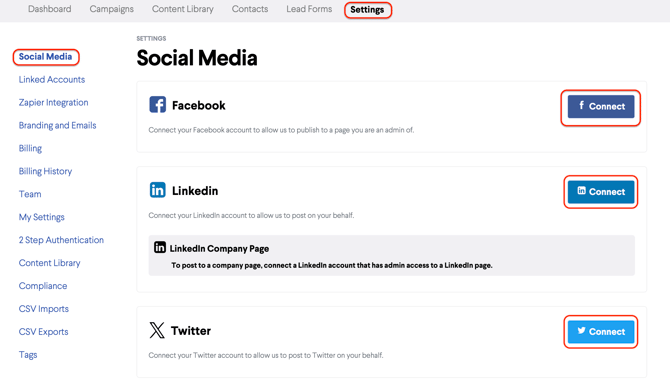
Click on the Settings tab in the top menu, then go to your BOMA Social Media Settings page. You'll see connection options for Facebook, LinkedIn, and X (Twitter).
Step 2: Click the Connect button for your first platform
Click the blue Connect button next to the platform you'd like to connect first. You'll be prompted to log in with your social media credentials.
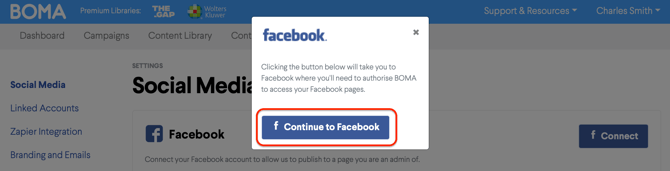
You need to be an admin of the business page you want to connect. BOMA connects to your business profile (not your personal account) for Facebook and X (Twitter). For LinkedIn, you can connect both your personal profile and your business page, useful if a director or colleague also wants their profile connected. If your firm doesn't have all three platforms, just connect one for now.
Step 3: Select your business profile from the dropdown
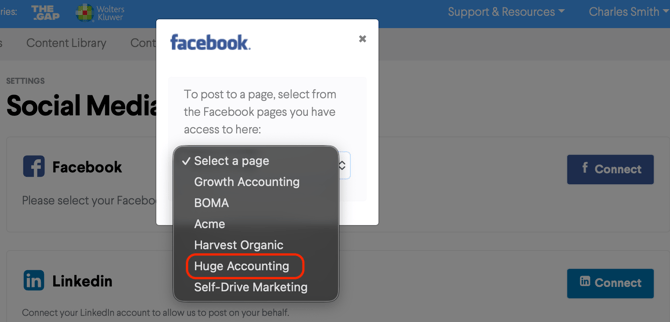
Once logged in, a dropdown will appear. Select the business profile page you want to connect to BOMA. Most users will only have one option to choose from.
You'll see a confirmation message once your account has been successfully connected.
Part 2 — Post your first social media update
Step 4: Open the content library
On the BOMA Dashboard open the Content Library.
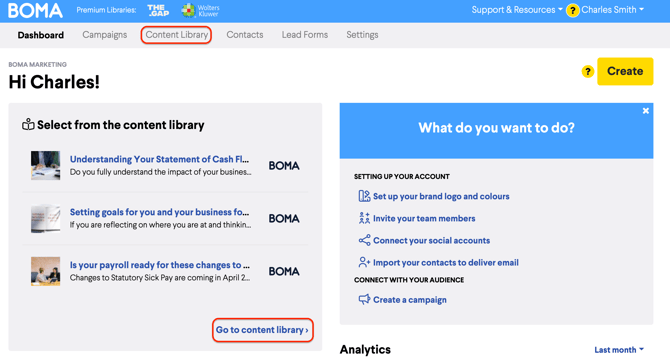
Browse the articles and click into any one that catches your eye.
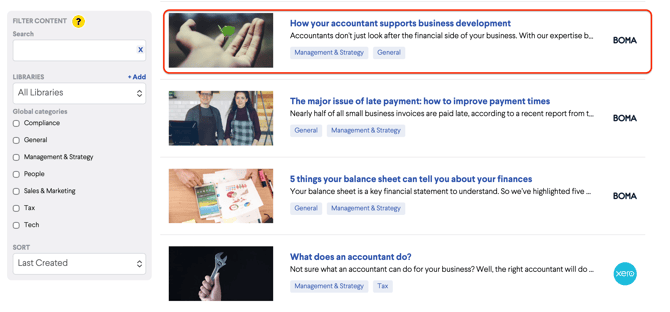
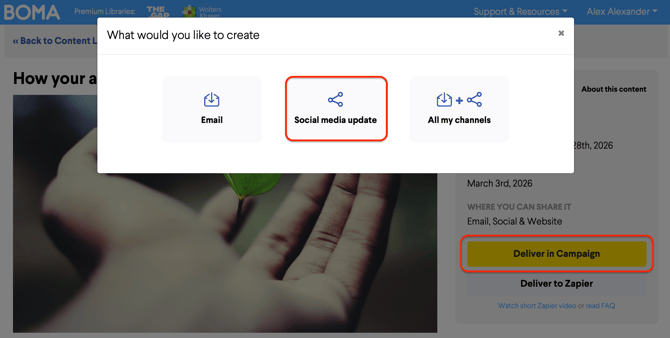
Step 5: Click 'Deliver in Campaign' and select 'Social Media Update'
Inside the article, click the Deliver in Campaign button, then select Social Media Update from the options.
Step 6: Name your post and click Start
BOMA will pre-fill the campaign name using the article title. You can edit this if you'd like — the name is only visible inside your BOMA account and won't appear on the post itself.
Click Start when you're ready to move on.
Step 7: Customise your post (optional)
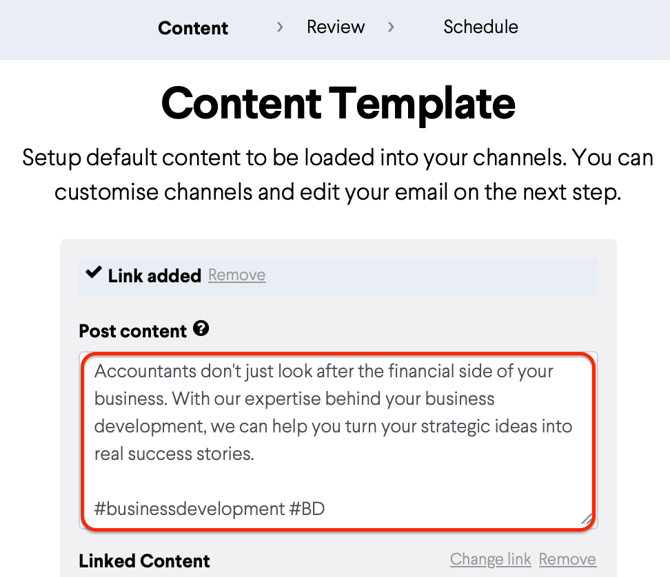
On the content template page you can personalise your post — for example, add your firm's hashtag or tweak the opening line to match your voice.
Click Continue when you're happy.
Step 8: Review, then send
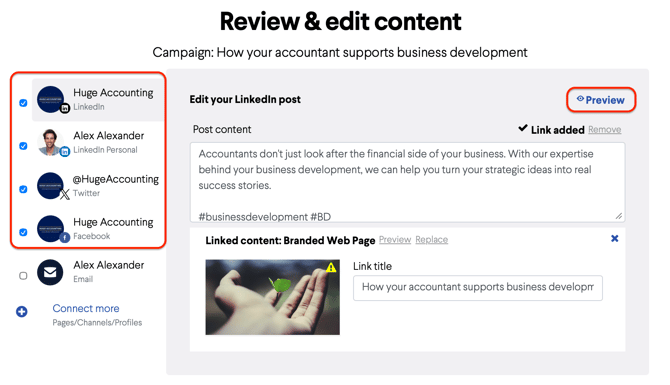
On the Review and Edit Content page you'll see all your connected social channels. Click Preview next to each one to see exactly how your post will look before it goes out.
You can also edit the post individually per channel at this stage — useful if you'd like to tweak the copy for LinkedIn versus Facebook, for example.
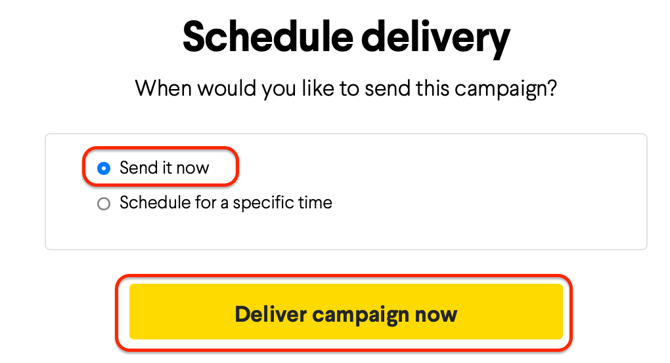
When you're happy, click Schedule Campaign, then select Send Now. Your post will appear on your social account within a few minutes.