
Step 1: Open the content library
On the BOMA Dashboard open the Content Library.
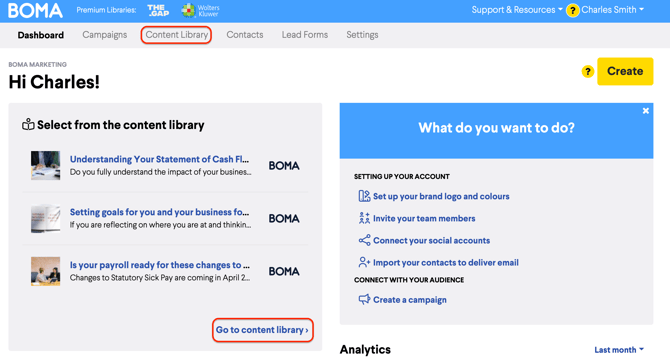
A short tour will launch automatically when you first visit the library. You can go through it or skip it, you can always relaunch it later using the yellow lifebuoy icon at the bottom right of the screen.
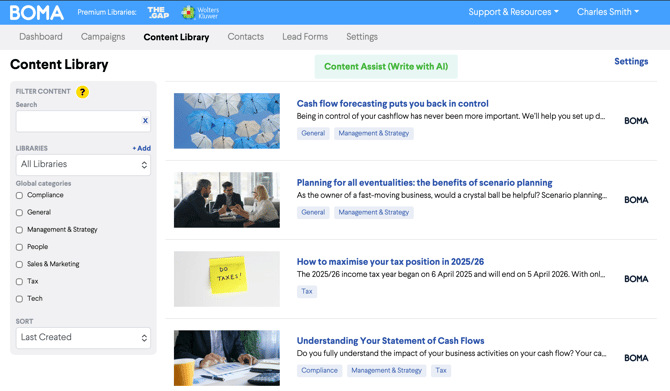
Step 2: Pick an article and open it
Browse the library and click into any article that catches your eye. This is the kind of content your clients and prospects will receive from you — take a moment to have a read.
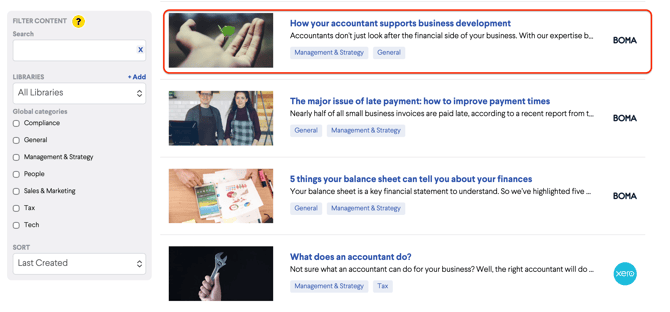
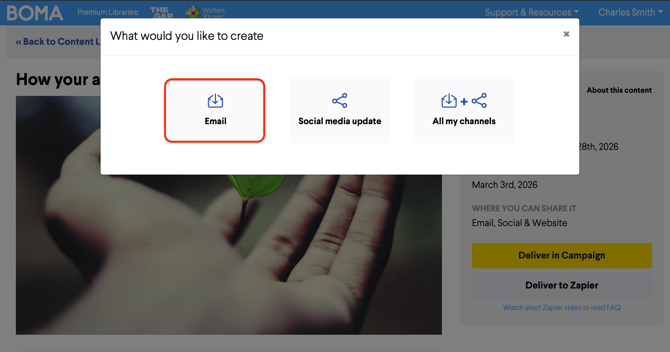
Step 3: Click 'Deliver in Campaign', then select 'Email'
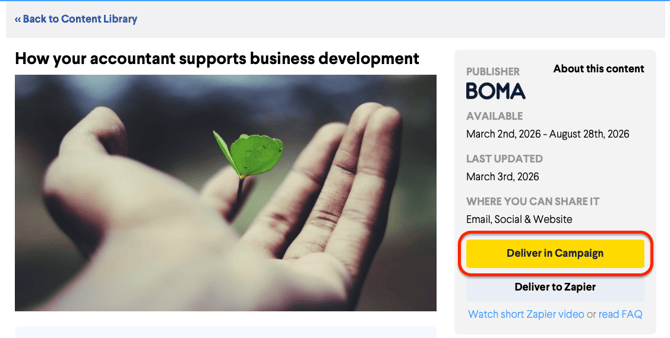
Inside the article, click the Deliver in Campaign button, then select Email from the options.
Step 4: Name your email campaign
BOMA will pre-fill the campaign name using the article title. You can edit this if you'd like — just note that the campaign name is only visible inside your BOMA account and is not shown to email recipients. Click Start when you're ready to move on.
Step 5: Choose your email template
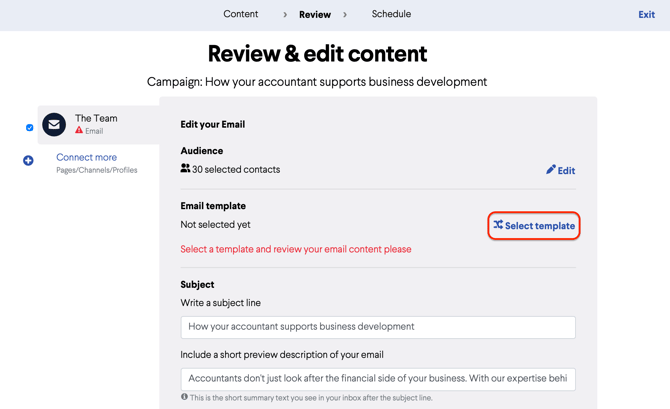
You'll land on the Review & Edit Content page. Click Select Email Template to continue.
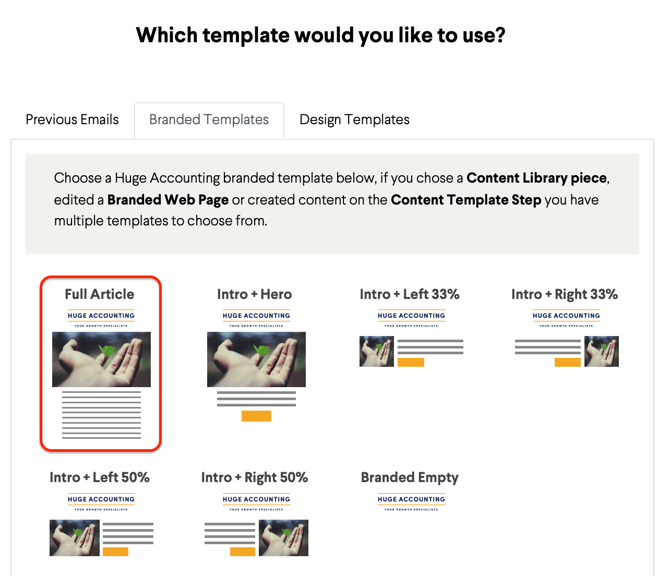
On the Branded Templates page, select the Full Article option. BOMA will automatically build an email using your firm's logo and footer, with the article injected into the body.
Step 6: Personalise your email
Your branded email is now ready to customise. For this first send, keep it simple:
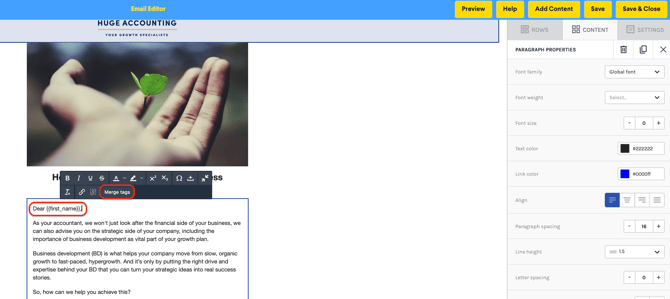
- Add a greeting at the top of the email body (beneath the headline), e.g. Hi or Dear
- Insert a merge tag for the recipient's first name, click Merge Tags in the editor toolbar, then select First Name. BOMA will automatically personalise this for each contact.
- Optionally add a sign-off at the bottom
When you're happy, click Preview to check how the email looks on different screen sizes, then click Save and Close.
Step 7: Review, then send to yourself
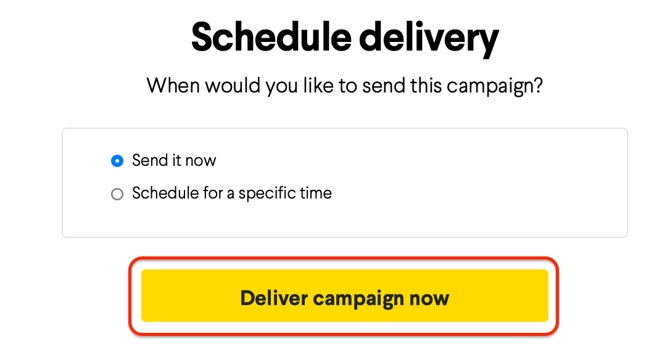
Review the subject line that BOMA has suggested (edit it if you'd like), then click Schedule Delivery. On the next page select Send it now and then click on the Deliver campaign now button.
Until you've authenticated your domain and uploaded your contacts, you can only send to yourself — which is exactly what we want at this stage. Both of these steps are covered later in your trial.
If you'd like to action these now, you can: